WooCommerce security checklist work should follow the store's business processes, not stop at the login page. Staff accounts, API connections, checkout, order storage and recovery all need an owner. A technically available shop can still have an unresolved access problem or a recovery plan that discards recent orders.
This checklist helps an agency or store operator review those responsibilities without running exploit tests. WooCommerce documentation and PowerSEC plans were checked on 14 November 2026. It is a maintenance and verification framework, not a compliance certification or a guarantee against fraud.

Protecting the store includes its people, connections and recovery process.
The short version
Area | Evidence to collect |
|---|---|
Staff access | Named account owners and justified roles |
Integrations | API key and webhook owners, destinations and permissions |
Updates | Current inventory, staging result and production verification |
Checkout | Controlled test of payment and order workflows |
Order storage | Known storage configuration and compatible extensions |
Recovery | Tested backup scope and a plan for recent transactions |
Use the checklist as a recurring review record. Mark a check complete only when the responsible person can point to the relevant result, not because a security product is installed.
WooCommerce security checklist: Start with staff access
Review Users > All Users and identify who needs each role. WooCommerce's roles documentation explains that Shop Manager can manage store functions without full WordPress Administrator access. It is still a powerful role, including access to orders and refunds, so it should not be treated as a harmless default for every employee.
Map accounts to people or clearly owned service functions. Ask the business owner to confirm current staff and agency relationships. Keep an approved access list and a process for removing access when responsibilities change.
Review interactive login protection separately from integration credentials. A successful administrator sign-in test does not verify every connection to the store. Confirm that account recovery is controlled by the intended owner and that emergency access does not depend on a departed employee.
For agencies, agree which users the agency can change and which require client approval. Document the boundary before an incident. This reduces the risk of either retaining unwanted access or disrupting a legitimate operational account during an urgent response.
Which integrations can read or change store data?
WooCommerce's REST API documentation describes keys linked to a WordPress user, with read, write or read/write permissions. Review the key inventory under WooCommerce > Settings > Advanced > REST API. Record the integration owner, purpose and permissions without copying the secret into the review document.
Ask whether each integration still exists and needs its current access. Coordinate revocation or replacement with the owner so a shipping, inventory or reporting connection does not fail without explanation. A descriptive key name helps, but it is not proof that the key is legitimate.
Review webhooks under WooCommerce > Settings > Advanced > Webhooks. The official webhook guide describes their event topics, delivery URLs, status and delivery logs. Confirm the destination and business purpose of each connection. Treat an unexpected destination as an investigation item rather than immediately classifying every unfamiliar integration as malicious.
Keep sensitive payloads out of broadly shared reports. The useful evidence is that the destination, owner and required behavior were checked, with any unresolved issue assigned to a person who can investigate it.
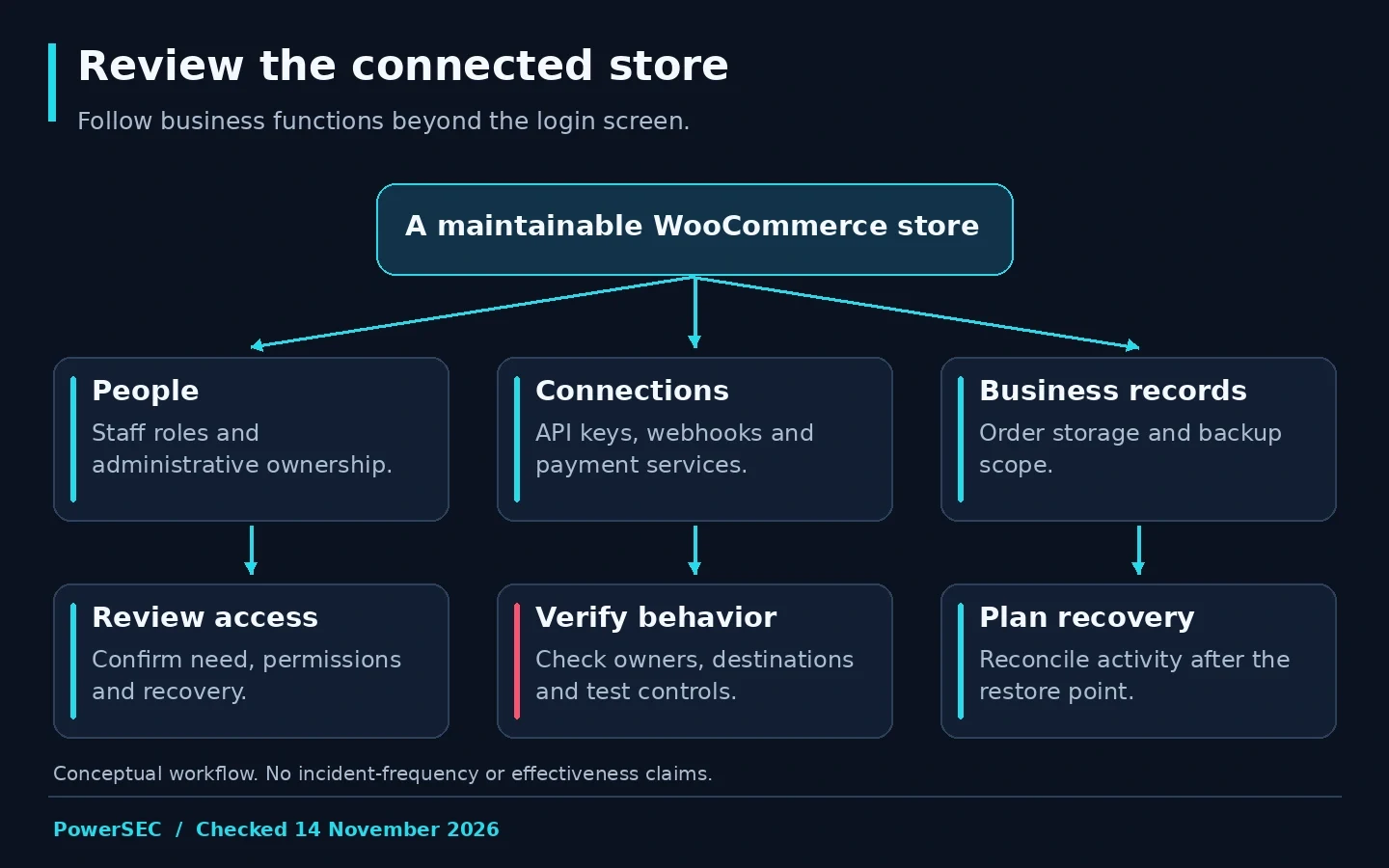
Review the store as connected business functions rather than an isolated login screen.
Make updates a verified store change
Follow the WooCommerce update guidance: prepare a backup, test the intended update set on staging and verify store workflows after deployment. Some updates also require a database update. Do not declare completion while a required database operation or relevant warning remains unresolved.
Maintain an inventory of the theme, WooCommerce extensions, payment gateways and custom components. Record who supplies updates and who supports compatibility. The objective is to make the actual store maintainable, not simply reduce the number of update badges visible in the admin.
Our suggested change note includes the affected components, staging observations, backup reference, deployment owner and production checks. If the site has custom code, name the person responsible for reviewing its behavior with the new update set.
Prioritize vendor security updates when an affected component is identified. A vulnerability scanner helps identify and prioritize work; the vendor update is the fix. Do not wait for a scanner to prove that an exploit occurred before taking an applicable security update seriously.
Can you test checkout without using real customer activity?
Choose a testing method supported by the actual payment gateway. WooPayments documents test accounts and development mode, including safeguards for copied development or staging sites. Other gateways have their own procedures; do not assume the same settings apply to every provider.
Before testing a cloned store, establish controls for outbound email, payments and integrations. Use approved test identities. Avoid sending test orders into a live fulfillment workflow or exposing customer records to a broadly accessible staging site.
Record the expected outcome of each test: product selection, cart calculation, checkout completion, payment result, order state and relevant notification. If a test fails, preserve the observation and identify the responsible component before changing several unrelated settings.
After production changes, use an agreed verification process appropriate to the live store. Keep the difference between test-mode success and live integration verification visible. A staging result provides evidence for that environment; it is not a universal claim that every payment route is functioning.
Do your backups cover the order storage in use?
Check the store's order-storage configuration rather than assuming orders live in a particular legacy table. WooCommerce's High-Performance Order Storage documentation explains its dedicated order tables and compatibility considerations. The relevant admin area is WooCommerce > Settings > Advanced > Features.
Ask the backup provider or developer to confirm that the selected backup scope covers the actual store database and required files. Do not change the storage mode simply to match an old backup script. Treat a storage migration as a separate planned change with its own compatibility checks.
For subscriptions, read the recovery guidance before relying on a rollback. It explains that a restore can remove newer business records and bring previously processed scheduled activity back into a pending state. Recovery needs reconciliation with what already happened outside the restored database.
Define acceptable data loss with the business owner. A brochure site's schedule may be inappropriate for a busy store. Choose the recovery cadence around the store's actual change rate and the work required to reconcile a gap, not around the most reassuring marketing label.
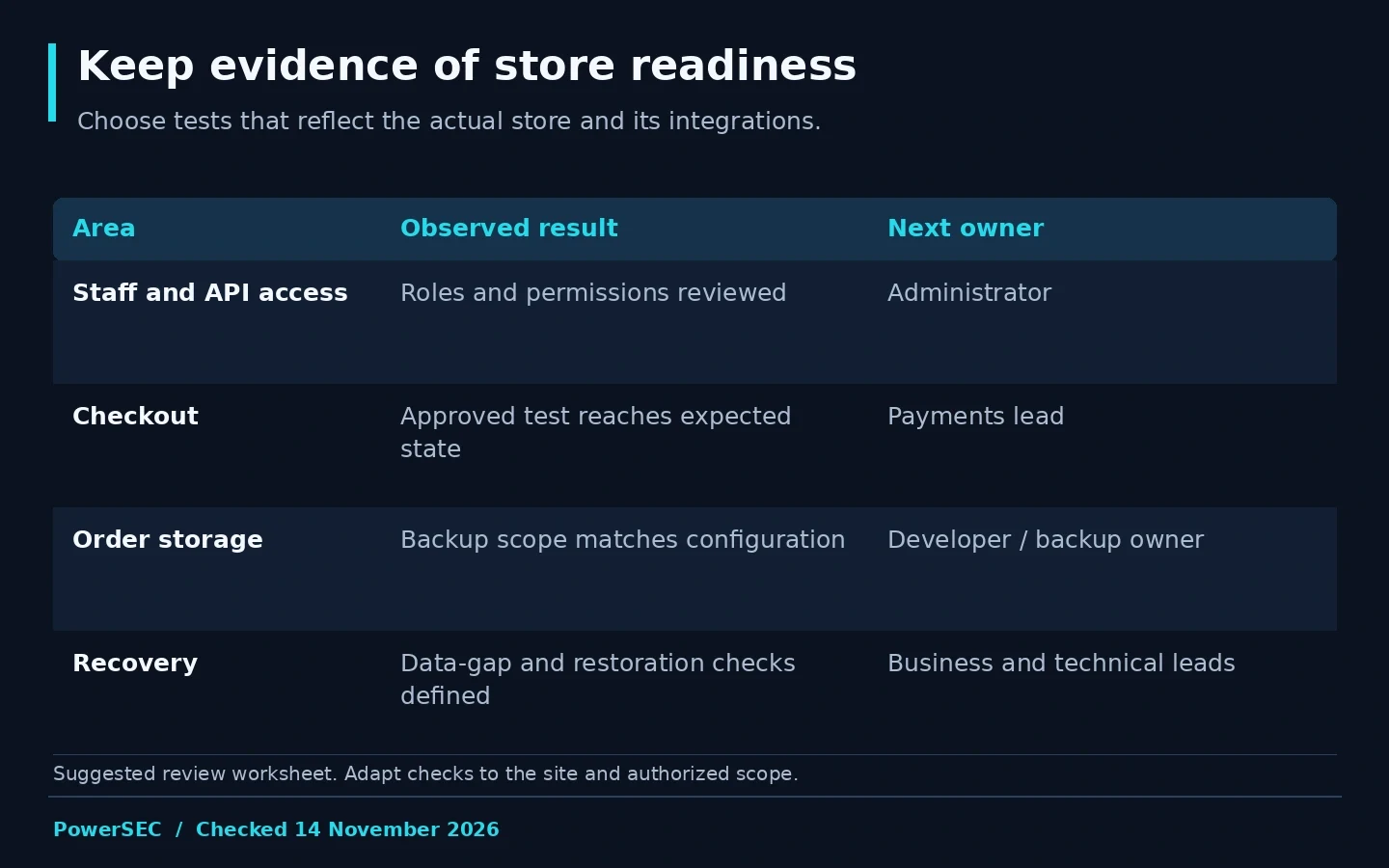
Complete the review with evidence of business behavior and recoverability.
Turn findings into assigned work
Use a review table with finding, evidence, owner, action and verification. Keep confirmed problems separate from unanswered questions. For example, an integration without a documented owner is a governance gap; it is not automatically proof of data theft.
Set priorities according to the observed issue and business impact. An applicable security update, an unauthorized privileged account and a cosmetic report warning should not be treated as equivalent just because they appear on the same dashboard.
Record what is outside the review. Payment-provider controls, hosting isolation and custom integration behavior may require their respective owners. Escalate those questions rather than marking them passed without access or evidence.
At the next review, check whether the previous actions were verified. A growing list of recommendations is less valuable than a smaller list of completed corrections with a clear record of what changed.
Where PowerSEC fits
PowerSEC Pro + Backup Plus combines the Pro Protection security workflow with a larger cloud backup allowance. As checked on 14 November 2026, it includes 100 GB of cloud storage and 14 restore points, with an 8 GB maximum single backup. Those are plan limits, not a promise of continuous transaction replication.
Read the backup limit details and match the package to the store's actual backup size and recovery needs. PowerSEC's vulnerability scanning, bulk plugin updates and incident runbooks can help organize maintenance. They do not replace payment-gateway testing, store-specific reconciliation or the vendor's security update.
Bottom line
A useful WooCommerce security review ends with verified access, understood integrations, tested changes and a credible recovery process. Start with the store's business workflows, assign each responsibility and keep evidence of the checks. That produces a more useful result than a long checklist with unexplained green ticks.
Sources
Primary sources checked on 14 November 2026: