WordPress malware keeps coming back after you remove the flagged files. Before repeating the cleanup, establish what actually returned: the same file, a new unauthorized account, the same visitor symptom, or an old warning. Those observations lead to different investigations. Treating them as interchangeable makes it difficult to tell whether your changes worked.
This guide offers a practical way to organize a recurring WordPress malware investigation without running suspicious code. Technical documentation and PowerSEC features were checked on 14 November 2026. It is a diagnostic workflow, not a claim that a particular campaign or vulnerability caused your incident.

A returning warning calls for a wider investigation, not another unrecorded deletion.
The short version
Observation | Useful next question |
|---|---|
The same unwanted file reappears | What changed after the last verified clean state? |
A different file is flagged | Is this the same incident, a new entry point, or a false positive? |
Visitors still see spam | Can you reproduce it with a timestamp and exact URL? |
An external warning remains | Is it describing current content or an earlier observation? |
An unknown account appears | Which access path created it, and is that path still available? |
Start an incident record before making further changes. WordPress's hacked-site guidance recommends documenting symptoms and talking to your hosting provider. Ask the host to preserve available logs while the investigation is still possible.
Why WordPress malware keeps coming back
Use working hypotheses rather than immediately choosing a culprit. We recommend separating the investigation into persistence, renewed access and observation problems. These are questions to test, not a frequency ranking or a diagnosis.
Persistence means something unwanted survived the cleanup. Renewed access means an attacker can still change the site. An observation problem means the warning or symptom has not yet been tied to the current site state. More than one can apply, so keep the evidence for each separate.
WordPress itself has components that a quick look at the normal plugin list will miss. Must-use plugins load automatically and appear in a separate Must-Use section. Hosts also use that mechanism legitimately. An unfamiliar file there deserves an ownership check, not an assumption that it is a backdoor.
Likewise, browser passwords are not the only credentials associated with WordPress. Application Passwords are individually revocable credentials for integrations and API access. A password change is not a substitute for reviewing that inventory.
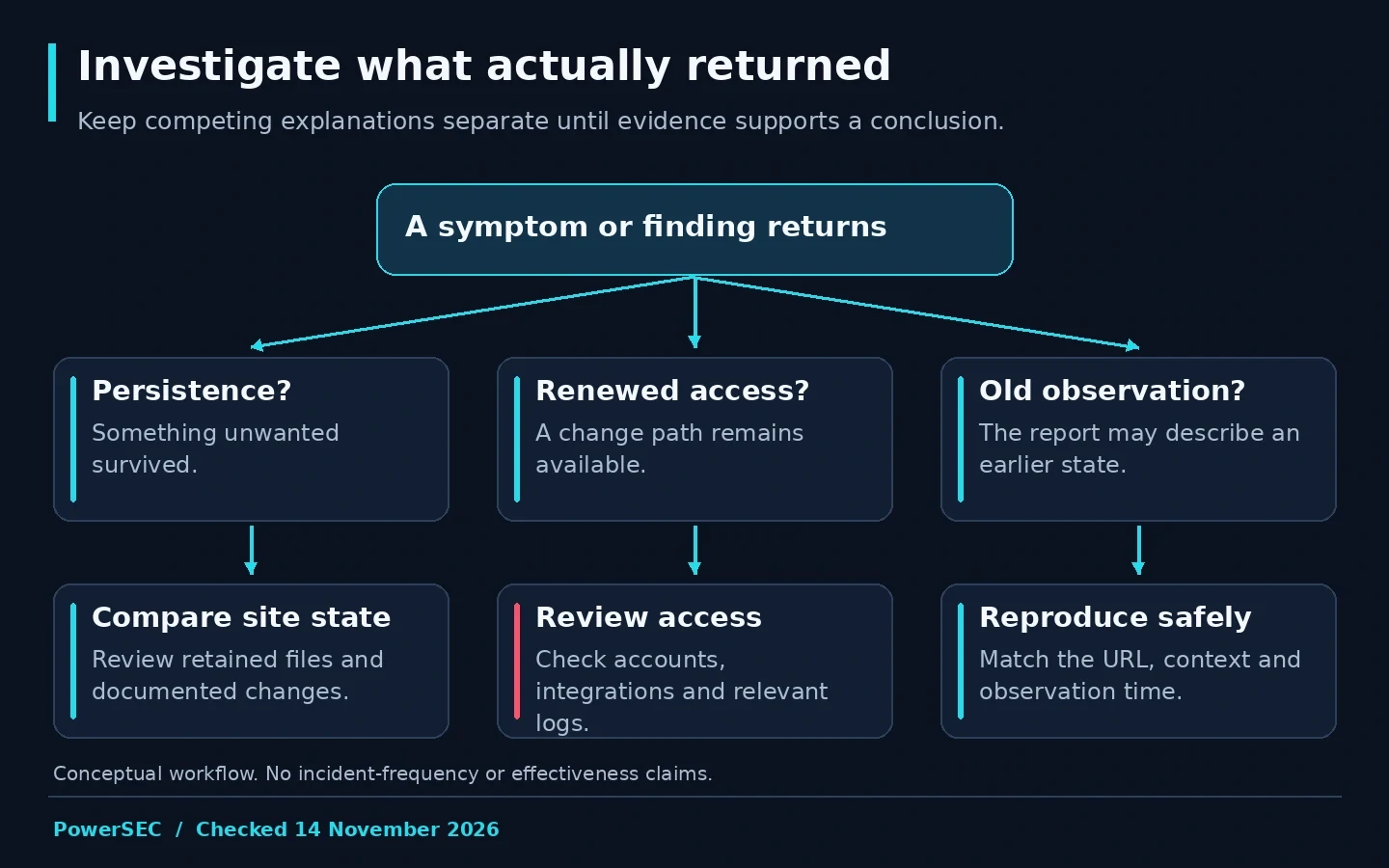
Keep alternative explanations open until evidence supports or rules out each branch.
Preserve a timeline before changing more
Create a private case note with the first reported symptom, discovery time, timezone, affected URLs and the changes made since discovery. Record who performed each action. Avoid storing passwords, payment information or full customer records in the note.
Add the scanner's exact finding, affected path and scan time. Ask whether the report describes a current file or a saved scan. Preserve the original report before rerunning anything. If the finding disappears, that older report may be the only record of what prompted the intervention.
Request a protected copy of relevant files, database and logs before cleanup when practical. Label an infected snapshot clearly and restrict access to it. Its purpose is evidence and comparison, not a recovery recommendation. Agree with your host or responder where it will be stored and when it will be deleted.
Do not make the timeline more certain than the evidence permits. A file modification time can help arrange observations, but it is not a verified time of compromise. Write "first observed" when that is what you know. The same discipline applies to a client's statement that the site was clean yesterday: record what was checked, by whom and from which view.
Review the files outside the obvious list
In the WordPress admin, inspect the installed plugins, active theme and Must-Use section. Build an inventory with an owner for each component. Confirm unfamiliar hosting components with the host before changing them. The WordPress documentation also notes that must-use plugins do not receive normal plugin update notifications, so include their maintenance process in the review.
Ask the responder to compare suspicious files with trusted vendor packages and documented custom code. A mismatch is a review item. It can also represent a legitimate customization. Conversely, checking a limited set of official files does not establish that everything elsewhere is clean.
Include writable directories and files outside the usual plugin folders in the agreed scope. PowerSEC's whole-site malware scanning documentation explains why its checks examine PHP-like executable files in uploads, cache, backup and other directories. A detection is a signal for review; PowerSEC does not automatically delete or quarantine those findings.
For an agency, the most useful deliverable here is a disposition list: reviewed and legitimate, replaced from a trusted package, removed with authorization, or still unresolved. "Scanner green" is less informative than knowing which suspicious items were investigated and what evidence supported the decision.
Which access paths still need attention?
Review privileged users through Users > All Users. Check who owns each account and whether its role is still needed. Do not remove a familiar-looking account without confirming ownership, and do not retain an unfamiliar administrator merely because its name resembles a service.
For each relevant user, inspect the Application Passwords section of the profile. Record the integration owner and review available usage metadata. WordPress documents individual revocation, which lets you address an unwanted integration without treating every connection as identical. The official guide explains the distinction between these credentials and interactive logins.
Extend the access review to the host, deployment service, domain management and other administrative systems within the incident scope. Assign an owner to each review. A WordPress-only investigation cannot establish the state of accounts nobody examined.
Coordinate credential changes with cleanup and trusted administrator devices. Document dependencies before revoking a legitimate integration so the business can recognize and repair the resulting interruption. The objective is controlled access with a clear owner, not a large number of undocumented resets.
What should the next investigation prove?
Ask for evidence that separates the competing explanations. The following is a proposed handoff checklist, not a universal list of malware indicators.
Question | Evidence to request | What it does not prove |
|---|---|---|
Did a file change again? | Preserved copies and a documented comparison | Who changed it |
Was access used after cleanup? | Relevant access logs and account records | That every recorded login was malicious |
Is the visitor symptom current? | URL, timestamp, browser context and captured response | The original entry point |
Are related sites in scope? | Host review of the relevant account and isolation boundary | That all neighboring sites are compromised |
Was the suspected entry point fixed? | Vendor update or documented configuration correction | That earlier damage was removed |
Give unresolved questions an owner and a next action. If logs are unavailable, state that limitation. Avoid replacing missing evidence with a confident story about how the attacker entered.
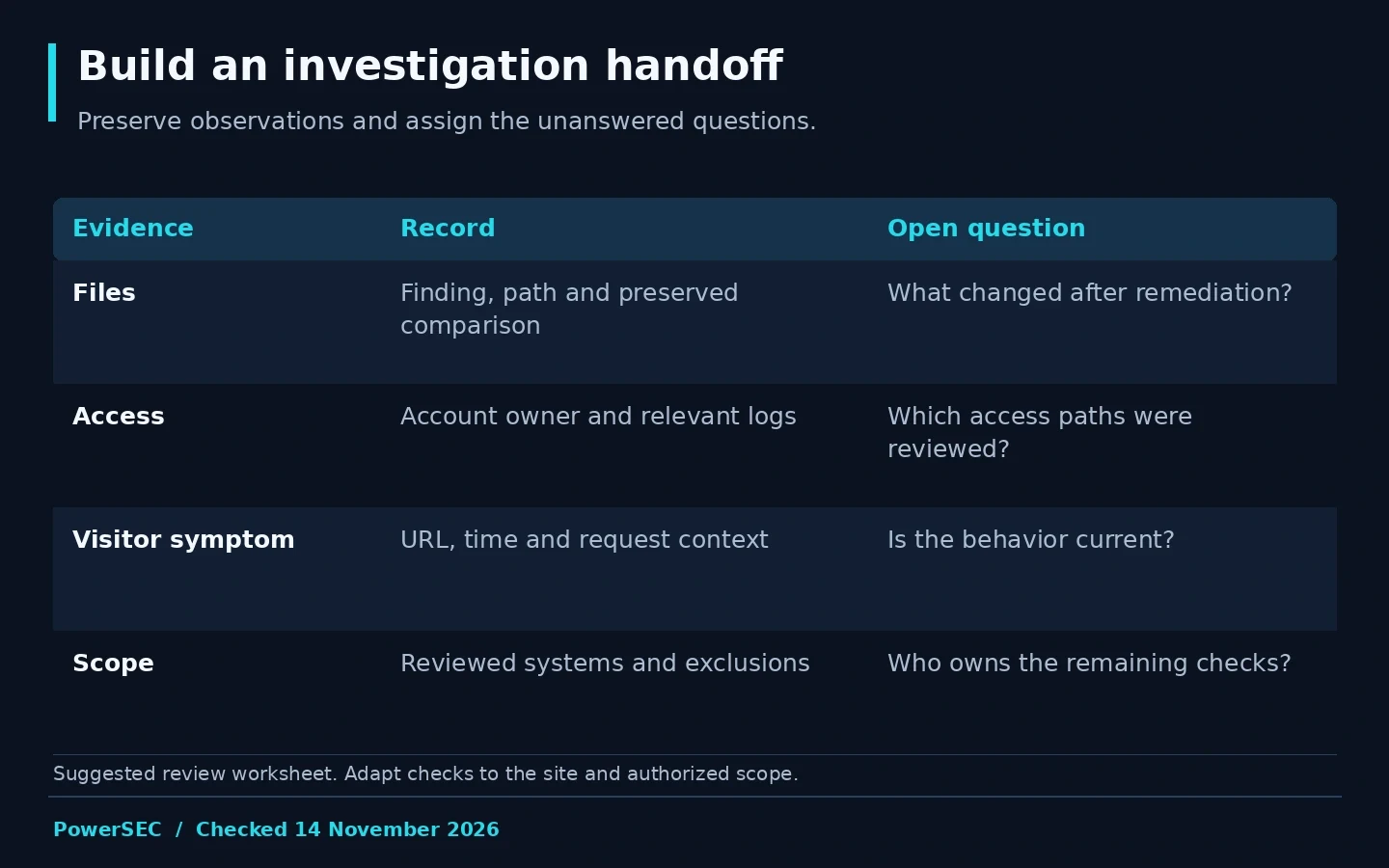
An investigation handoff should preserve observations, ownership and open questions.
What to do after the immediate cleanup
Apply the relevant vendor updates and correct identified access or configuration problems. An update fixes the vulnerability addressed by that vendor; it does not retrospectively establish whether the site was compromised. Keep that distinction in the incident record.
Agree on what will be monitored after the intervention: the original symptom, unexpected file changes, privileged access and the components implicated by the investigation. Define who receives alerts and who investigates them. An unattended report is not a response process.
Ask for a closure note that lists the work performed, checks completed and remaining uncertainty. It should distinguish "not observed in the checks performed" from "impossible to recur." If the same symptom returns, reopen that record and compare evidence rather than starting another undocumented cleanup.
Where PowerSEC fits
For an active or recurring incident, request a PowerSEC assessment with the symptom, timeline and previous cleanup notes. The service page describes assessment and one-time cleanup or recovery help; the necessary work depends on the site's condition and access.
For ongoing visibility, PowerSEC Free includes malware and file scanning and the vulnerability scanner. Pro Protection adds scheduled rescans and incident runbooks. These tools can support investigation and follow-up. They do not establish the root cause on their own, and a scan does not fix an affected plugin.
Bottom line
When malware appears to return, make the next action answer a question. Preserve the observation, verify the scope, review access and connect each remediation to evidence. If earlier cleanups produced no usable record, start by assembling one and getting the recurring incident assessed.
Sources
Primary sources checked on 14 November 2026: